[Example 3] Tracer Tracking Simulation in Real River
In this section, we perform s simulation of tracking floats for the discharge measurements in a real river. Floats are injected from a bridge and velocities are calculated by measuring the flow time between two sections ste up with 100m interval in which the upper section is located 130m downstream of the bridge. Using a discharge of 384m \(^3\)/s, flow calculation is conducted using Nays2d+, and the paths of the floats are simulated by UTT.
Flow Calculation by Nays2d+
Selection of Solver
From the start window of the iRIC, launch [Nays2d+] as Figure 166.
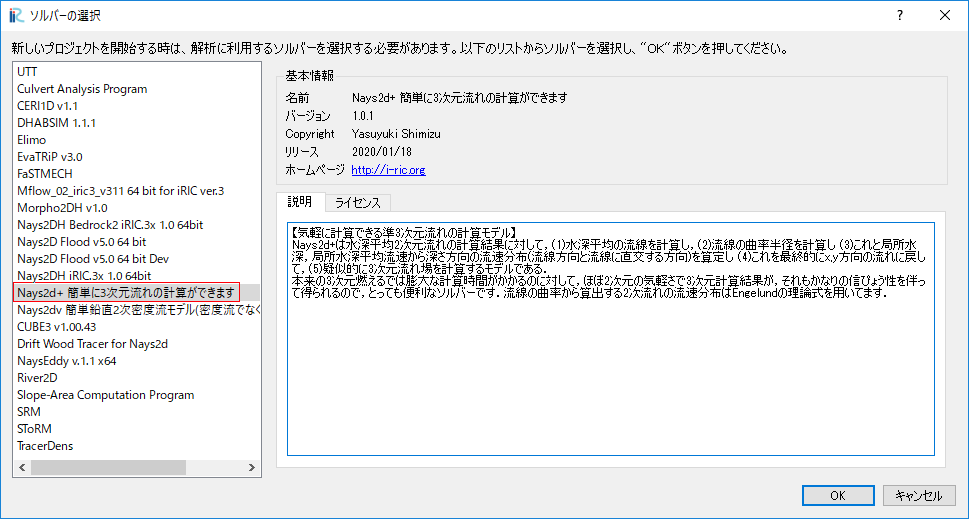
Figure 166 : Solver Selection
Import Geometric Data and Making Computational Grid
Importing River Bed Elevation Data
From the main menu, select [Import]->[Geographic Data]->[Bed Elevation(m)] as Figure 167, and read “tikei.tpo (Point Claud Data)” as shown in Figure 168.
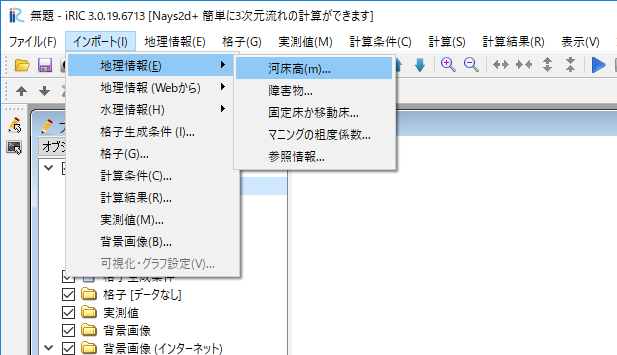
Figure 167 : Import River Bed Data File
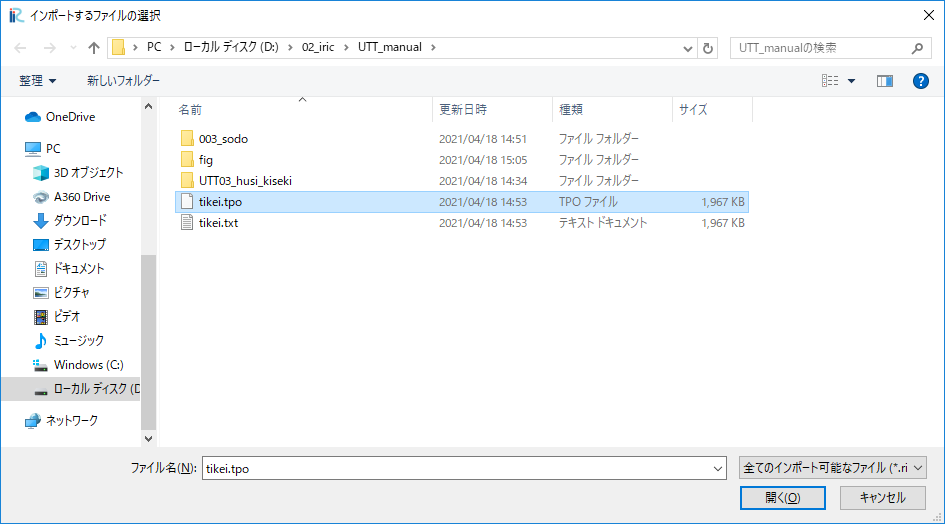
Figure 168 : Selecting a tpo file
While reading the data, you need to set filtering value as Figure 169. In this example, choose [1] just for without filtering.
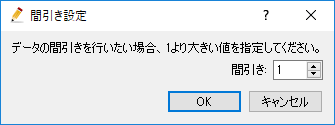
Figure 169 : Input Filtering Value
The geometric data (ground elevation data) is shown as Figure 170.
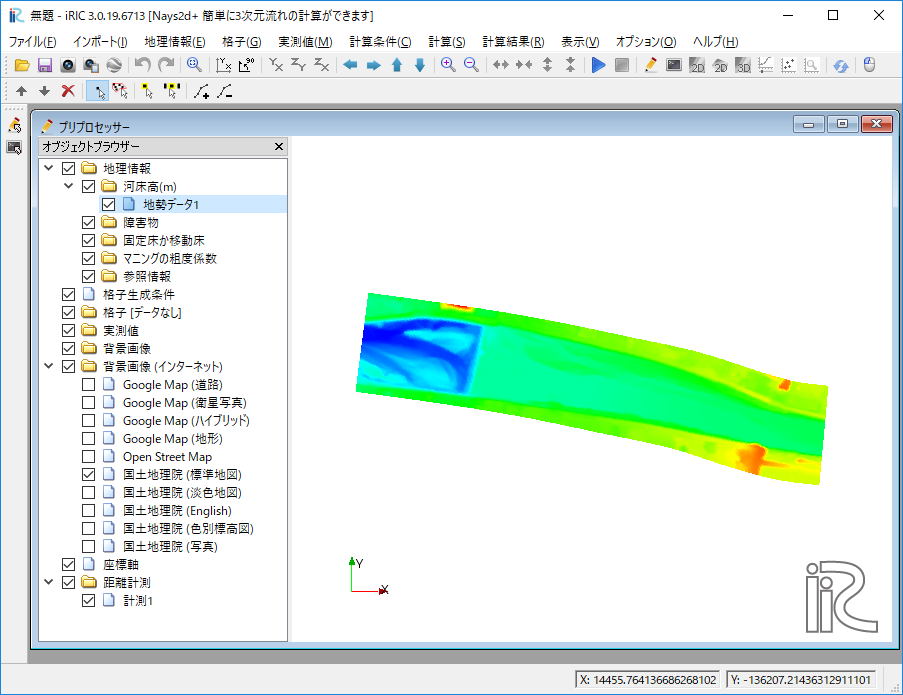
Figure 170 : Geometric Data
Setup Background image
From the main menu, select [File]->[Property], and press [Edit] button at [Coordinate System:] information as Figure 171.
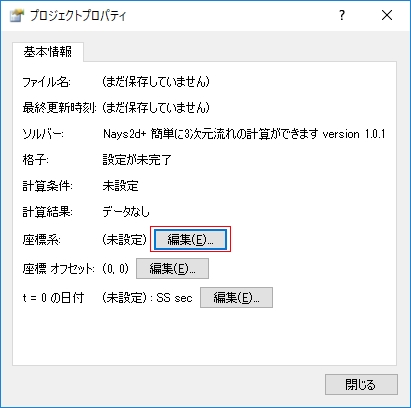
Figure 171 : Project Property
in the [Select Coordinate System] window, type “Japan” at [Search:] box, and select [EPSG ….. Japan …. IV] from the list below the [Search:] box, and press [OK] as Figure 172. Then close the [Project Property] window by pressing [Close].
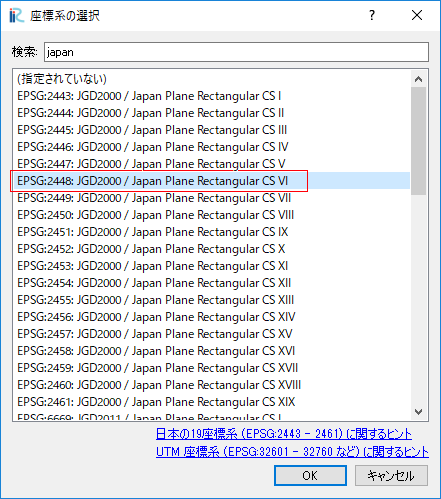
Figure 172 : Select Coordinate System
In the [Object Browser], put check marks at [Background Images (Internet)] ->[GSI (Ortho images)(Japan only)] as Figure 173.
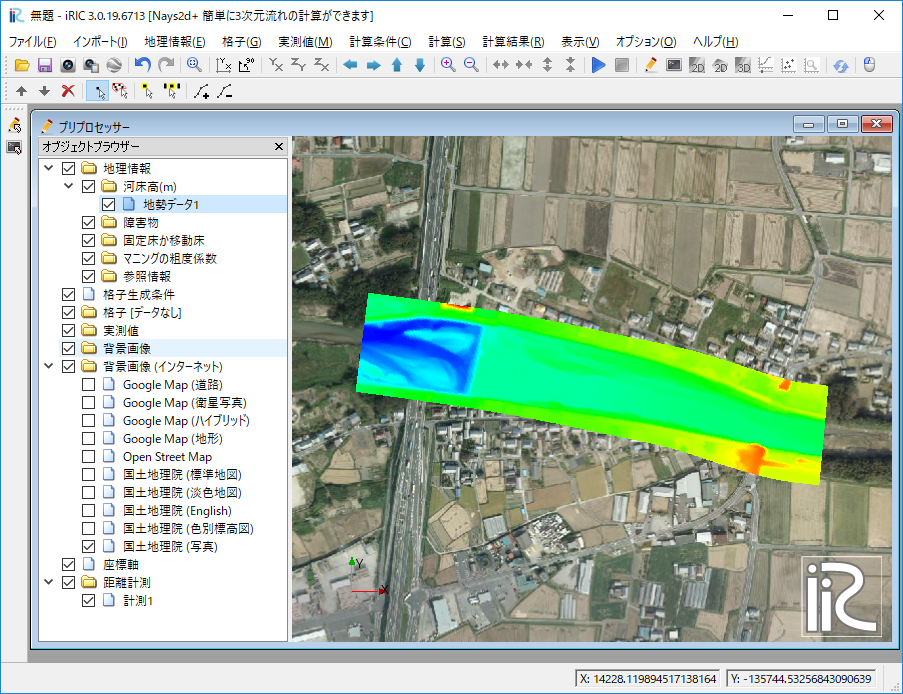
Figure 173 :Select Background Image
Grid Creation
From the main menu, select [Grid]->[Select Algorithm to Create Grid], and select [Create grid from polygonal line and width] in the next window (Figure 174)
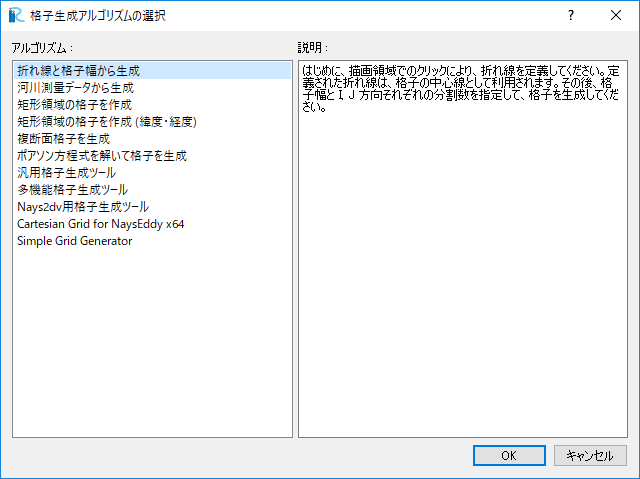
Figure 174 : Select Grid Creating Algorithm
Assign channel center points from the upstream side to down stream side as Figure 175. 上流側から下流へ向けて中心位置を選択する.
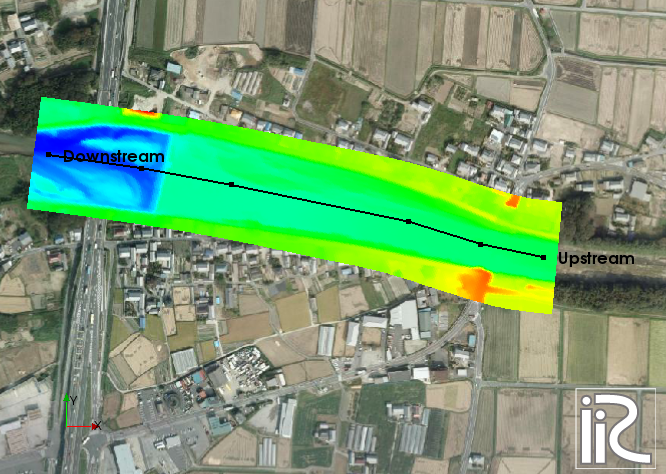
Figure 175 : Assign Center Points
In the [Grid Creation] window, Figure 176, input values as Ni=200, Nj=60 and W=120, then the grid size becomes about 3.2mx2m as Figure 177.
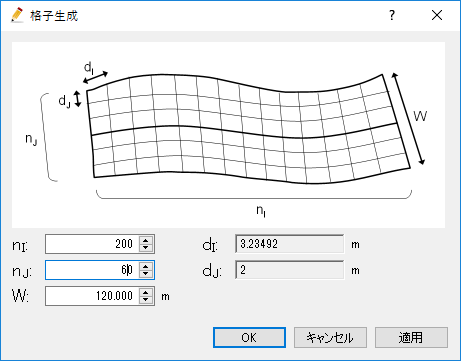
Figure 176 : Grid Creation
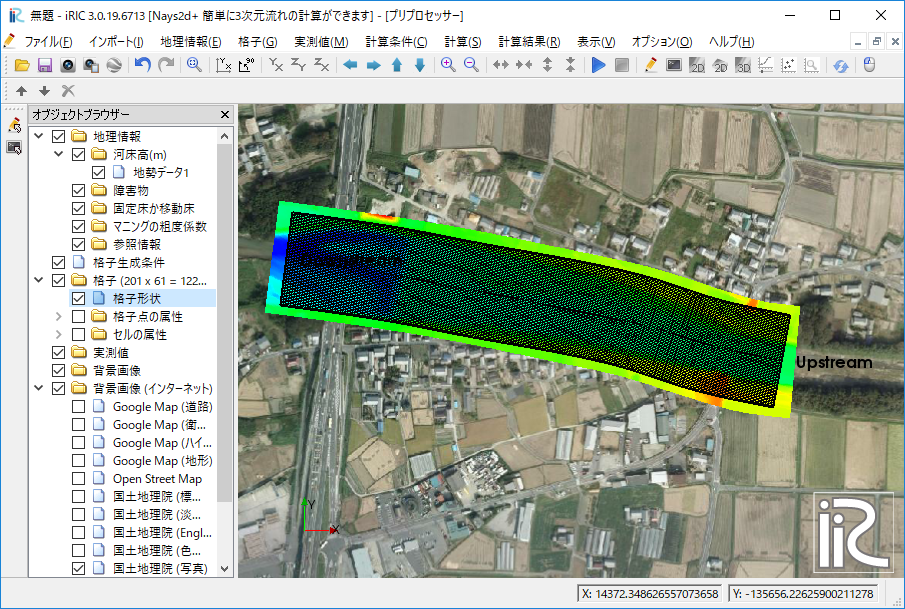
Figure 177 : Created Grid Shape
Setup for Bridge Piers
From the [Object Browser] in the left side of the window, hide the [Point Cloud Data 1] by removing the check mark. Right click [Obstacles], select [Add]->[Polygons], and make polygons by clicking the outer edge of the piers, and assign them as [Obstacle] (Figure 178) Surround all the cells in one polygon and assign it as [Normal Cell]. Note that the [Normal Cell] polygon has to be located at lower layer than the [Obstacle] polygons (Figure 179).
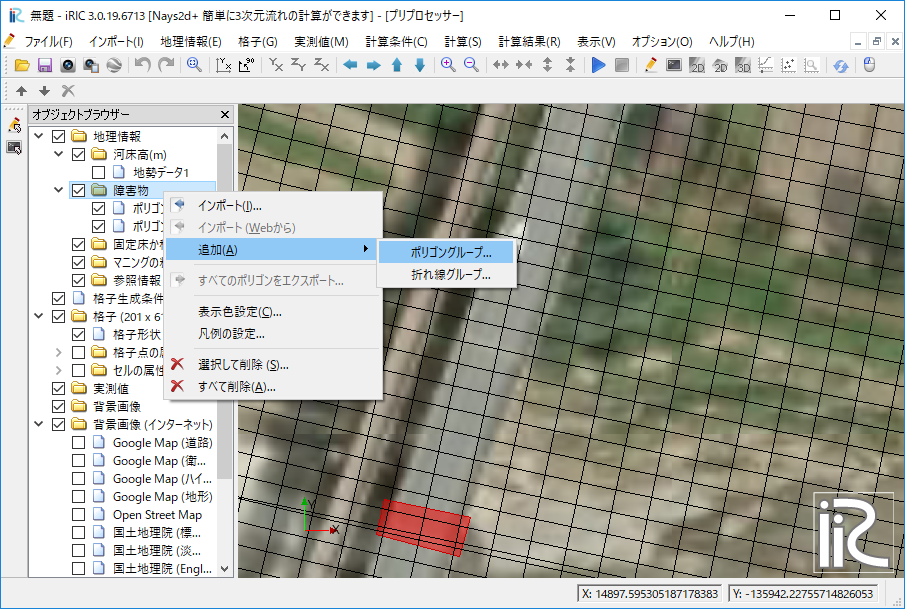
Figure 178 :Obstacle Cells for Bridge Piers
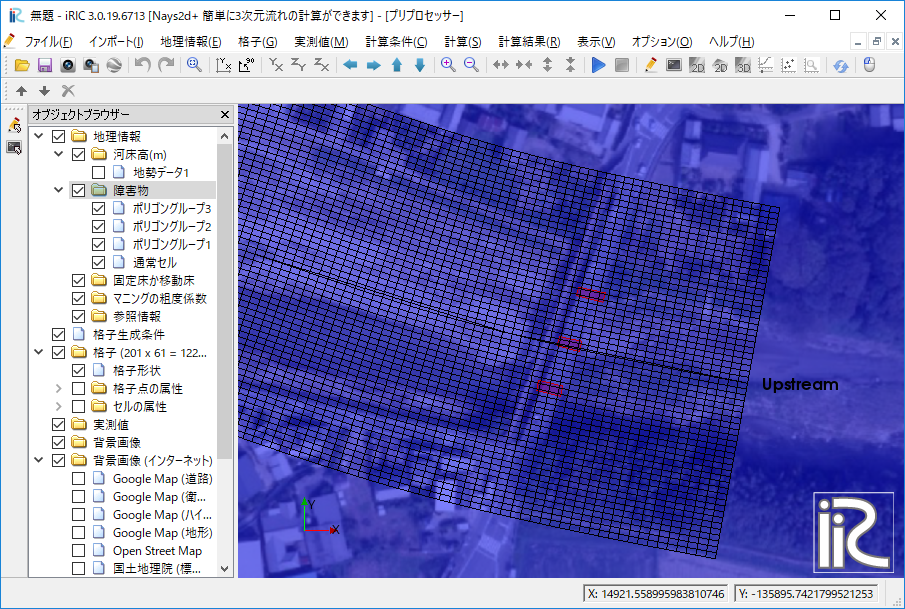
Figure 179 :Normal Cells for All the Area
Set Manning’s Roughness Coefficient
[マニングの粗度係数]よりポリゴンから全格子囲みn=0.030を入力する.
In the [Object Browser] under the group of [Geographic Data], right click [Manning’s roughness coefficient] and select [Add]->[Polygons], and make a polygon covering all the grid domain, and input n=0.030 (Figure 180).
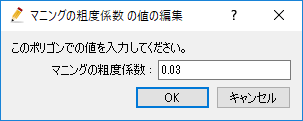
Figure 180 :Set Manning’s Roughness Coefficient
Attributes Mapping
From the main menu, select [Grid]->[Attributes Mapping]->[Execute] (Figure 181).
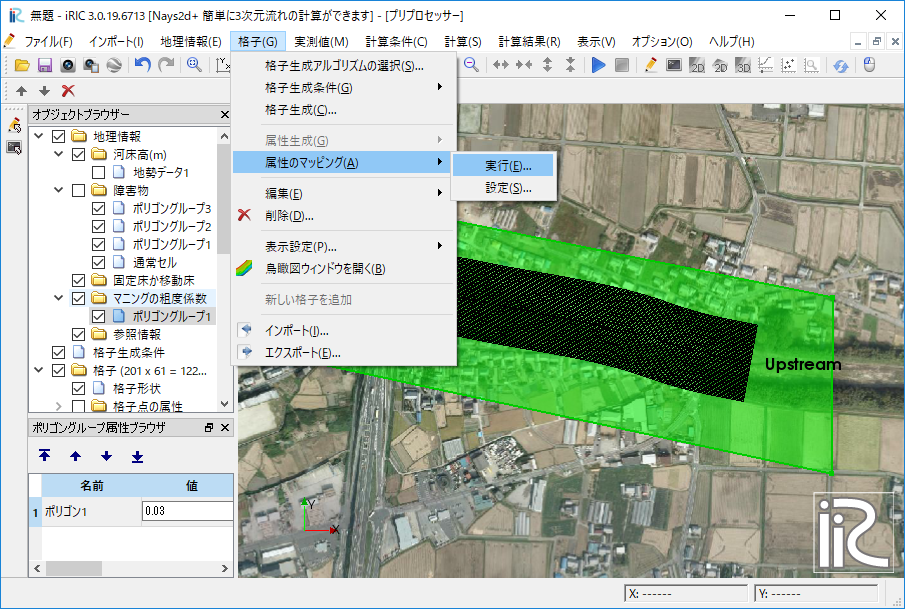
Figure 181 :Select Attributes Mapping
Put check marks at [Elevation(m)], [Obstacle] and [Maninng’s roughness coefficient] in the [Attribute Mapping] window as Figure 182, and press [OK] to execute mapping.
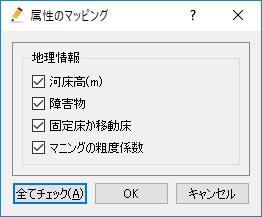
Figure 182 :Choose Mapping Items and Execute Mapping
Set Calculation Condition
From the main menu, select [calculation Condition]->[Setting], and input parameters in the [Calculation Condition] window as the following figures of Figure 183, Figure 184, Figure 185, Figure 186, Figure 187 and Figure 188. When you finished to input parameters, press [Save and Close].
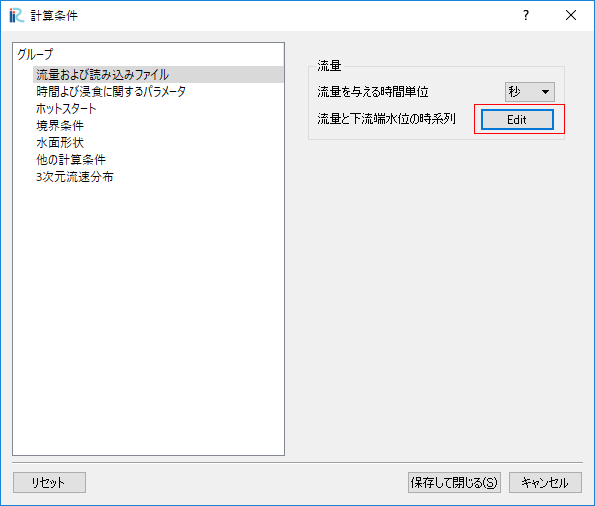
Figure 183 :Discharge and downstream water surface elevation settings
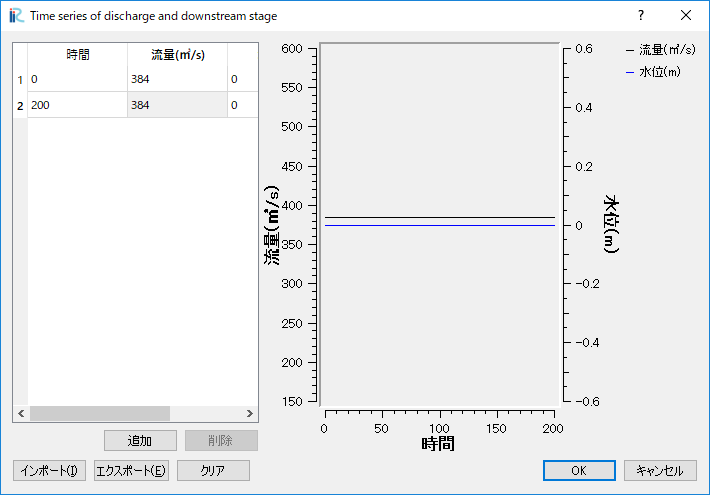
Figure 184 :Time series of discharge and downstream stage
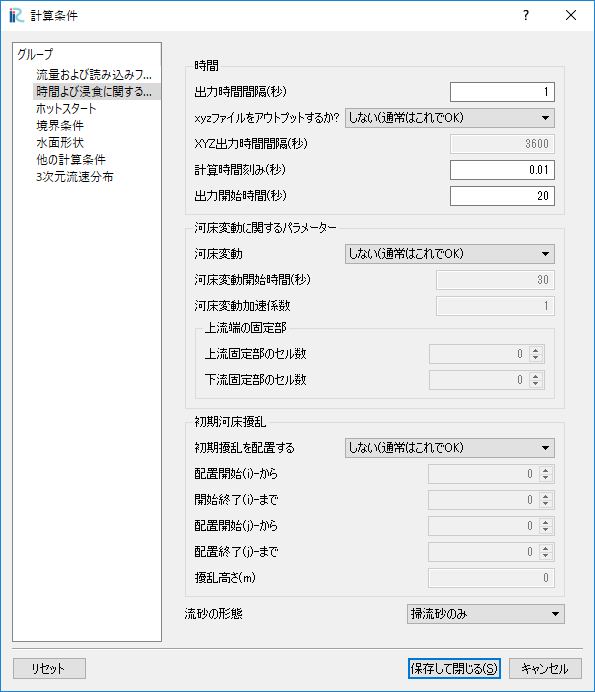
Figure 185 :Time and bed erosion parameters
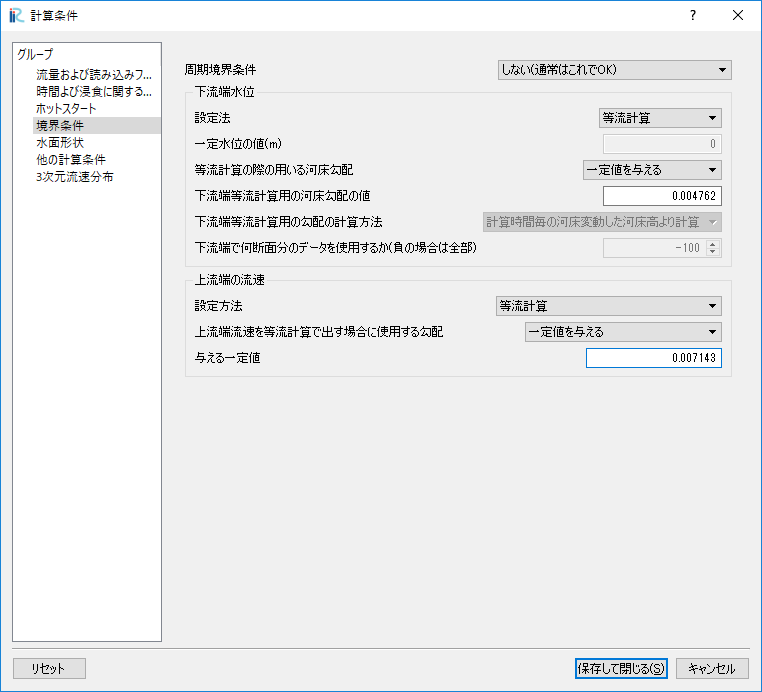
Figure 186 :Boundary Condition
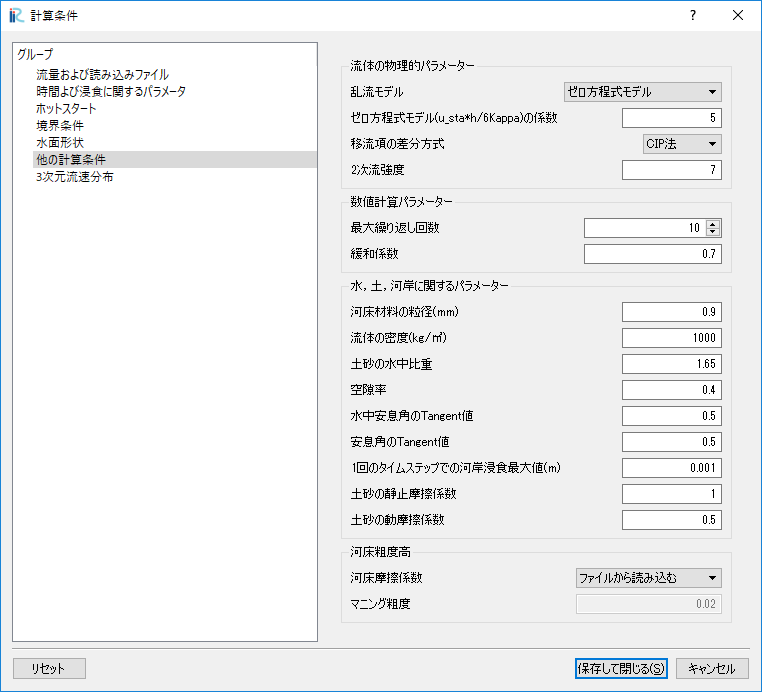
Figure 187 :Other computational condition
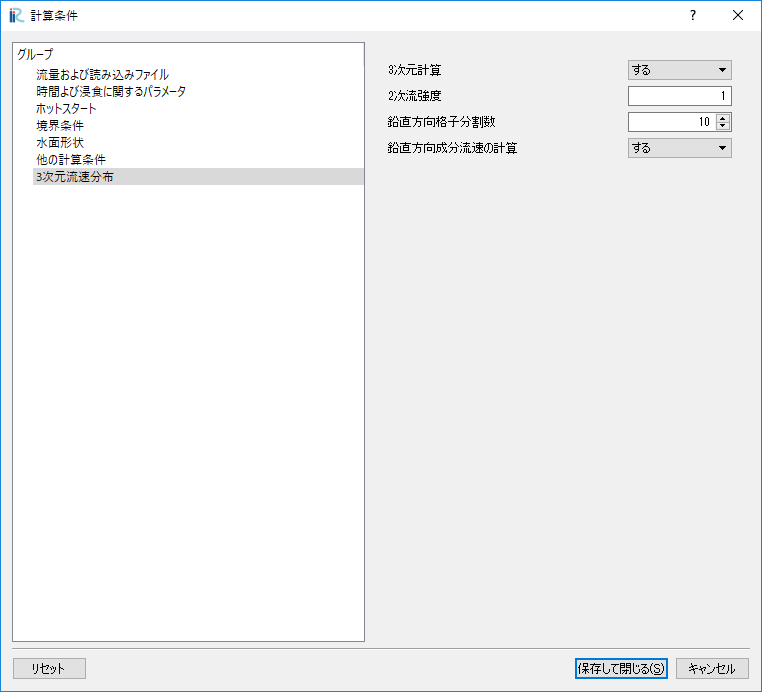
Figure 188 :3D Velocity Profile
Execute a Solver
Save the project with some name, and run the solver by [Simulation]->[Run]. When the simulation finished, save the results and close the project.
Tracking Virtual Tracers by UTT
Select a Solver
In the [Select Solver] window, which appears when you select [Create New Project] in the startup window of the iRIC, select [UTT] and press [OK] as Figure 189.
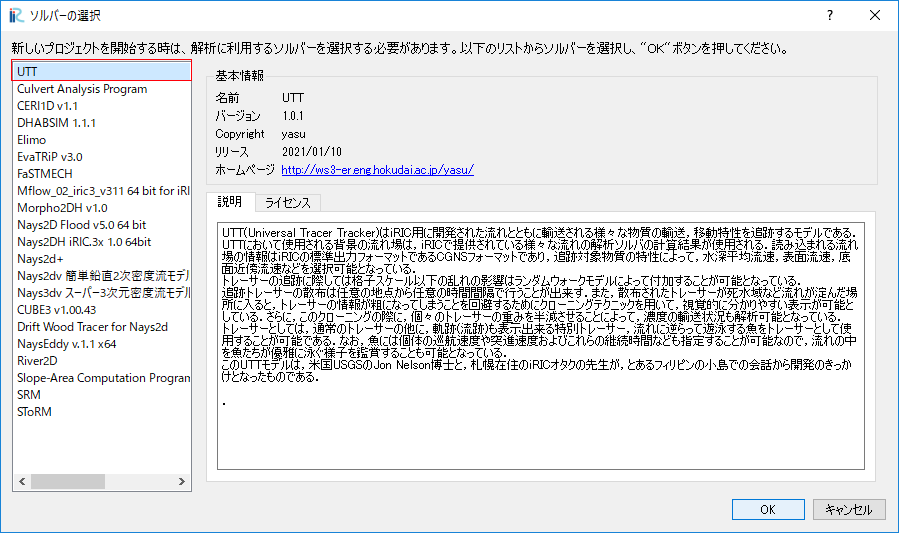
Figure 189 :Select UTT Solve
Import Grid Data
Right click [Grid(No Data)] in the [Object Browser] and select [Import] as Figure 190.
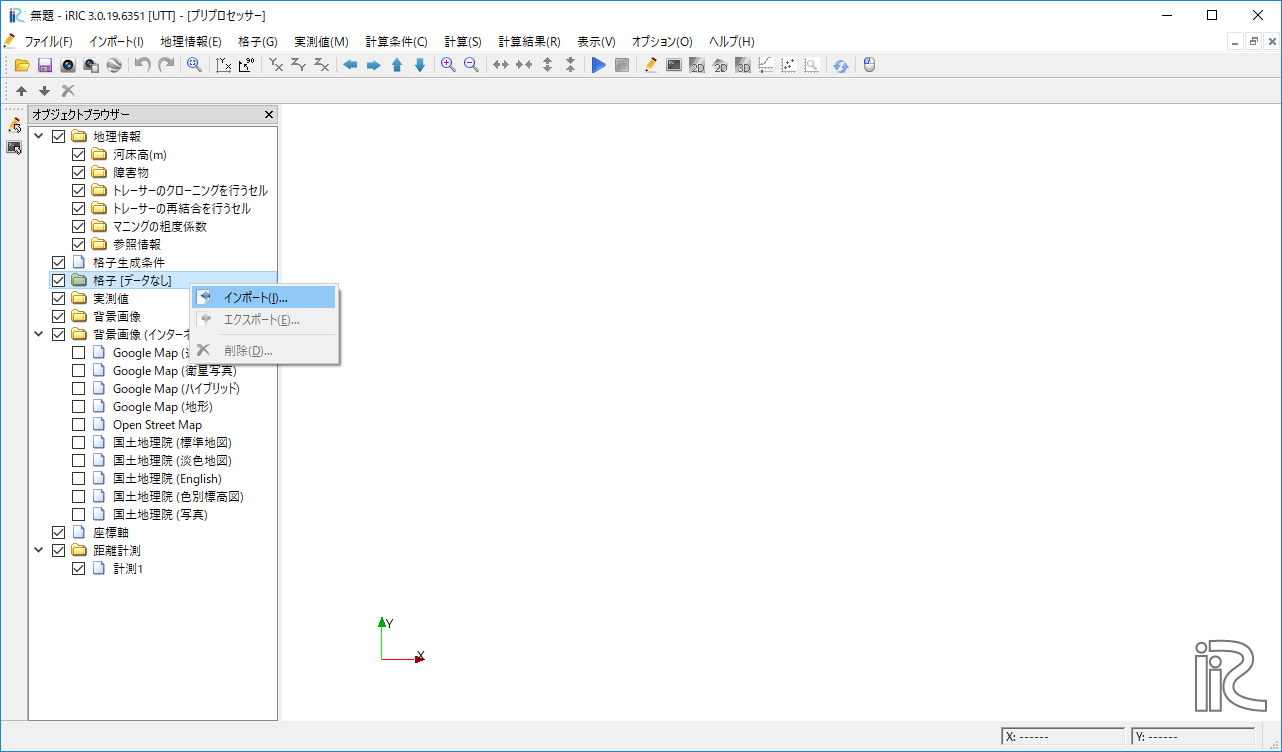
Figure 190 :Select UTT
Choose [Case1.cgn] which contains the calculation results of [Nays2d+] saved in the previous section (Figure 191)
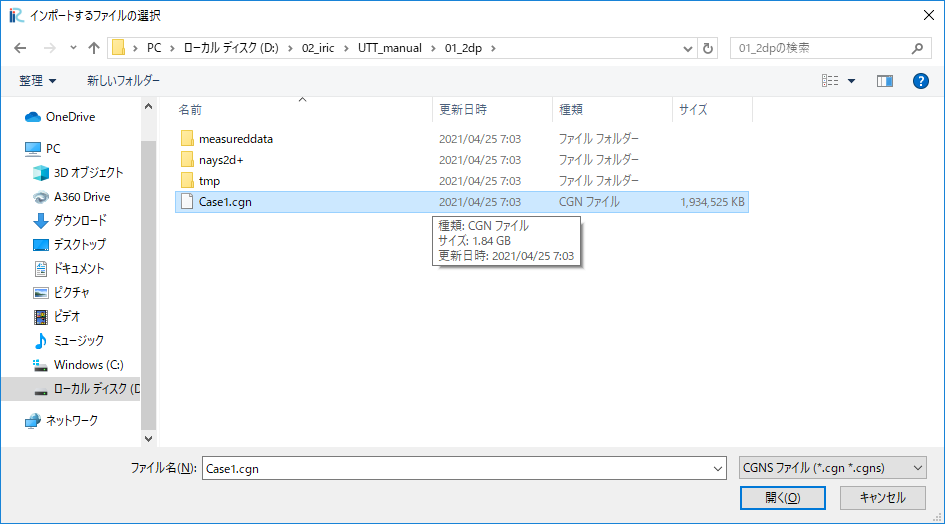
Figure 191 : Select a File to Import
Confirmation of Geographic Data
Set coordinate system by selecting [File]->[Property] from the main menu as Figure 192.
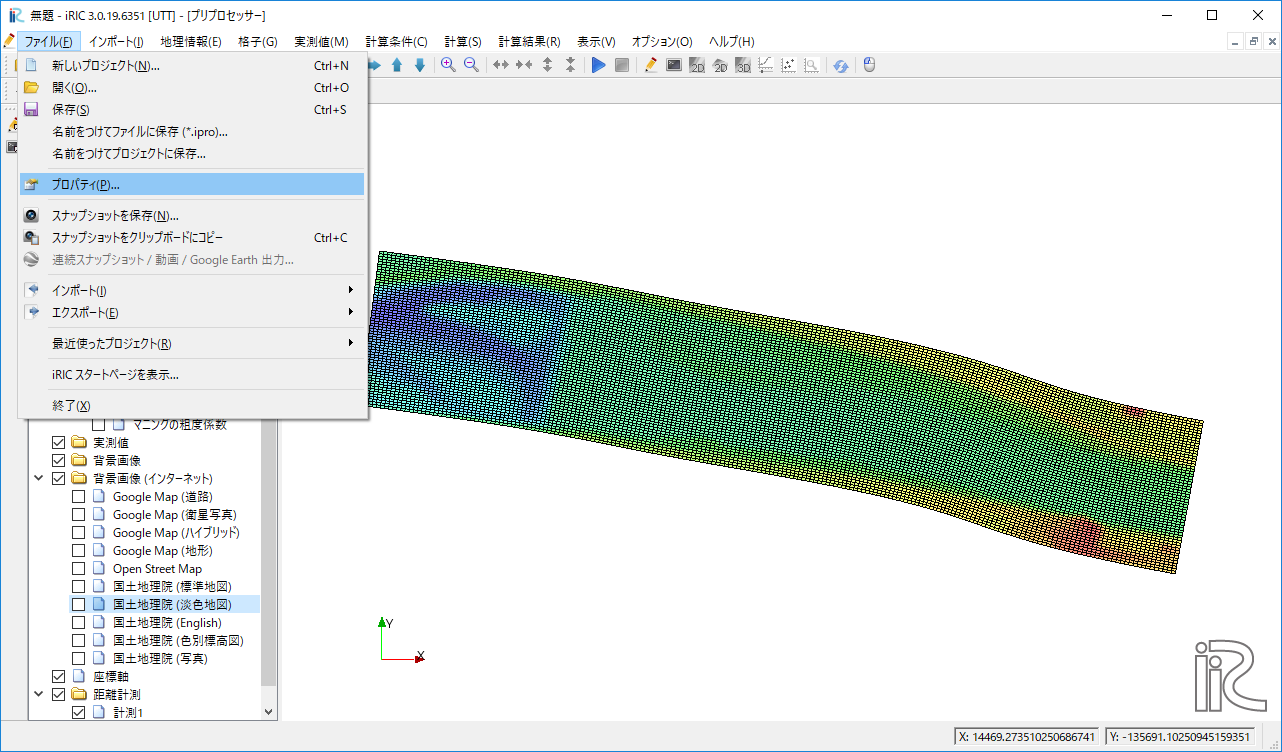
Figure 192 :Select Property
In the [Project Property] window, press [Edit] located at the [Coordinate System:] lin (Figure 193)
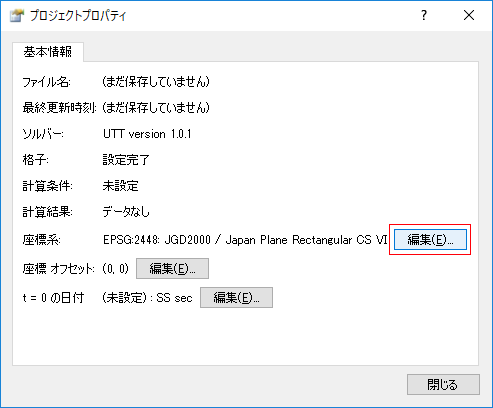
Figure 193 :Project Property
Type “Japan” in the box next to [Search:], select a line with [ EPSG:…Japan….CS VI], and press [OK] as Figure 194.
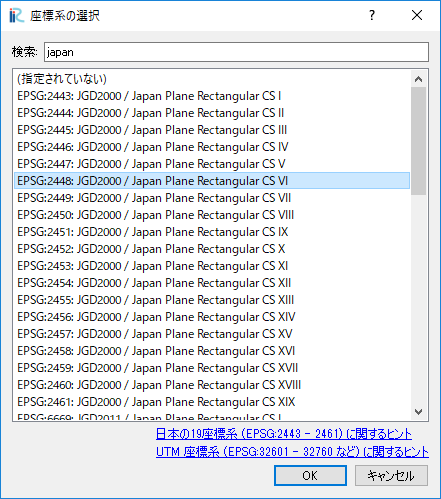
Figure 194 :Select Coordinate System
Select [Background Images(Internet)]->[GSI(Ortho images)(Japan only)] from the Object Browser as Figure 195.
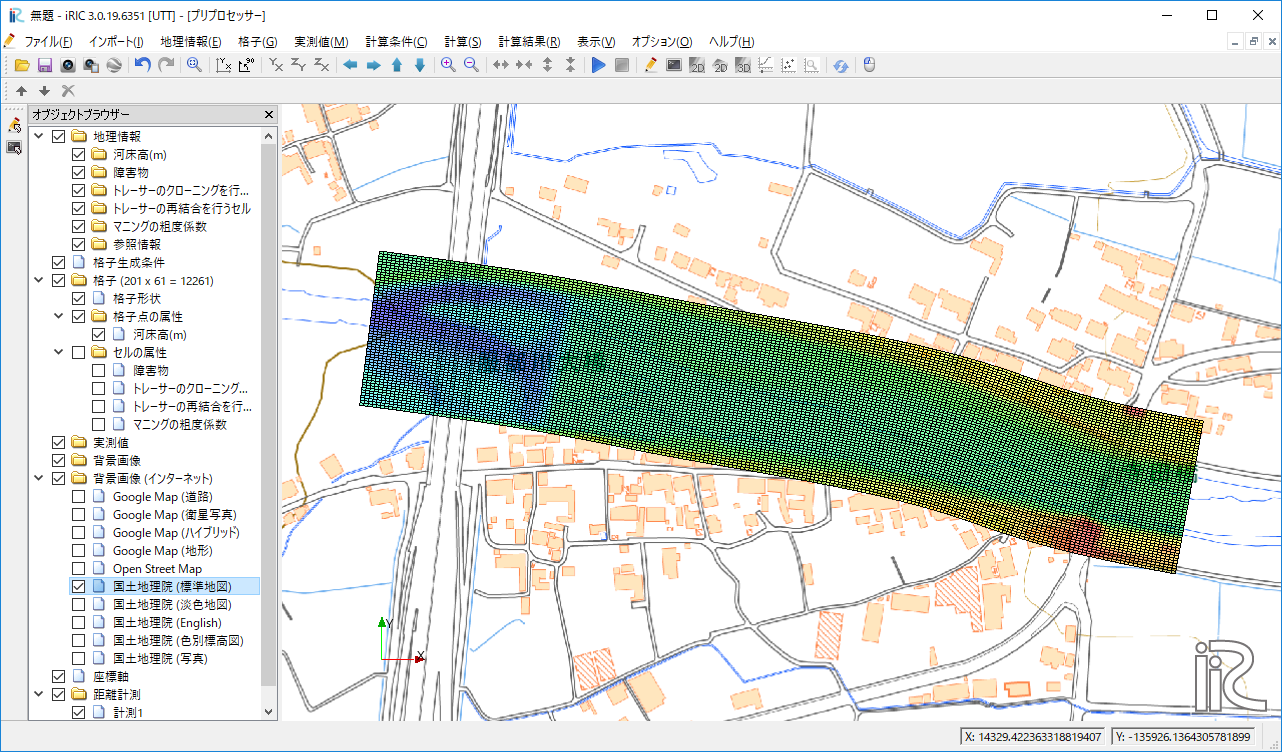
Figure 195 :Background Image
Tracer Tracking by UTT
Calculation Condition
From the main menu, select [Calculation Condition]->[Setting], and set the [Calculation Condition] as Figure 196, Figure 197, Figure 198 and Figure 199. In which the CGNS file to read in the Figure 197 is usually the same file imported for calculation grid in Figure 191.
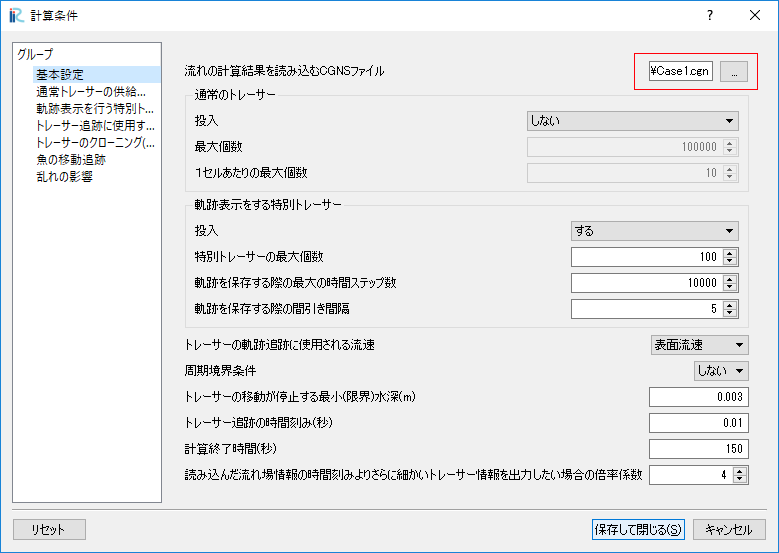
Figure 196 :[Basic Settings]
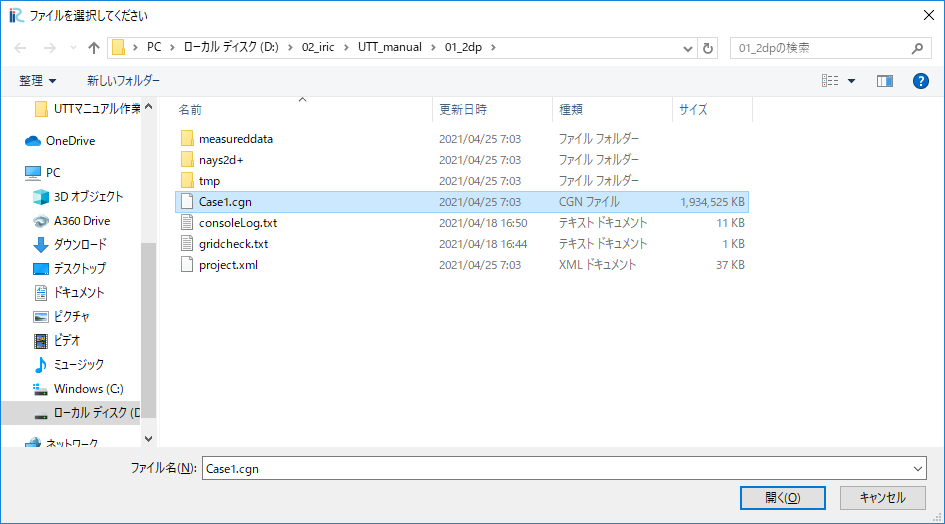
Figure 197 :Set the CGNS file to read the flow field information
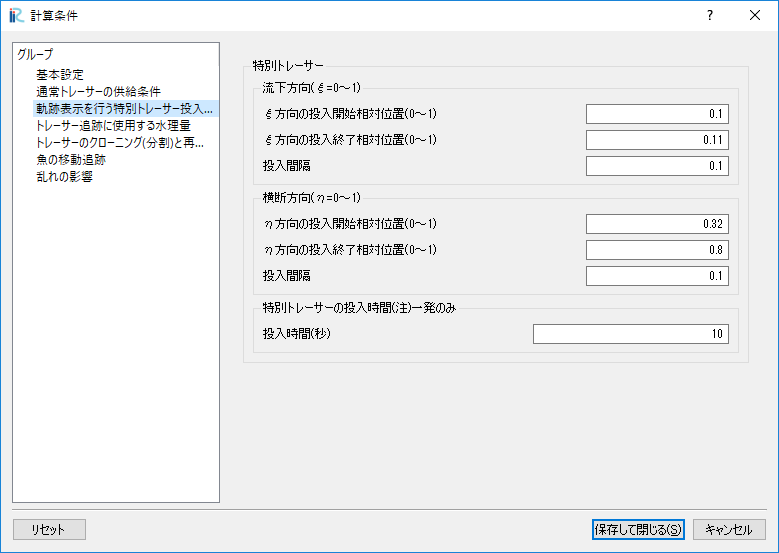
Figure 198 :Set special tracer information for path tracking
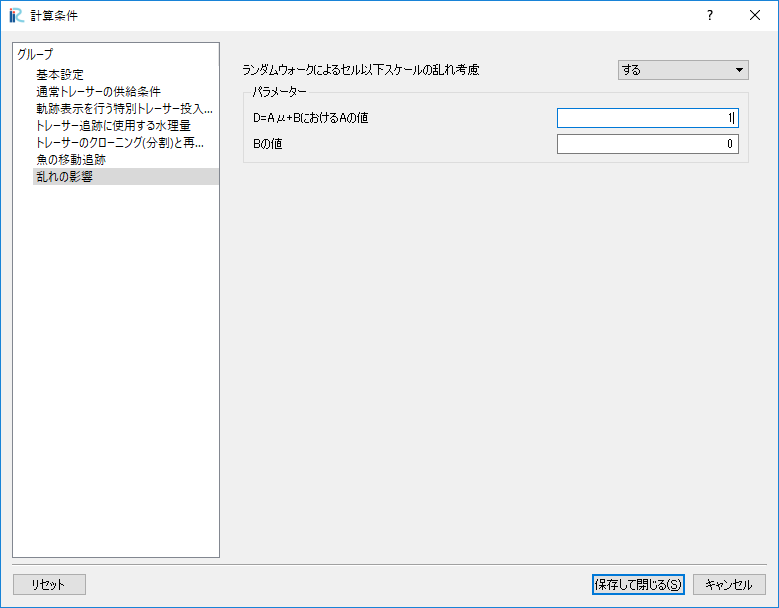
Figure 199 :Diffusion Condition
Execute Calculation
From the main menu, save thr project by selecting [File]->[Save Project as], and execute UTT by selecting [Simulation]->[Run].
Visualization of the Calculation Results
From the main menu, select [Calculation Result]->[Open new 2D Post-Processing Window]. Put check marks in [Background Images(Internet)] and [GSI(Ortho Images)(Japan only)] in the Object Browser, as Figure 200.
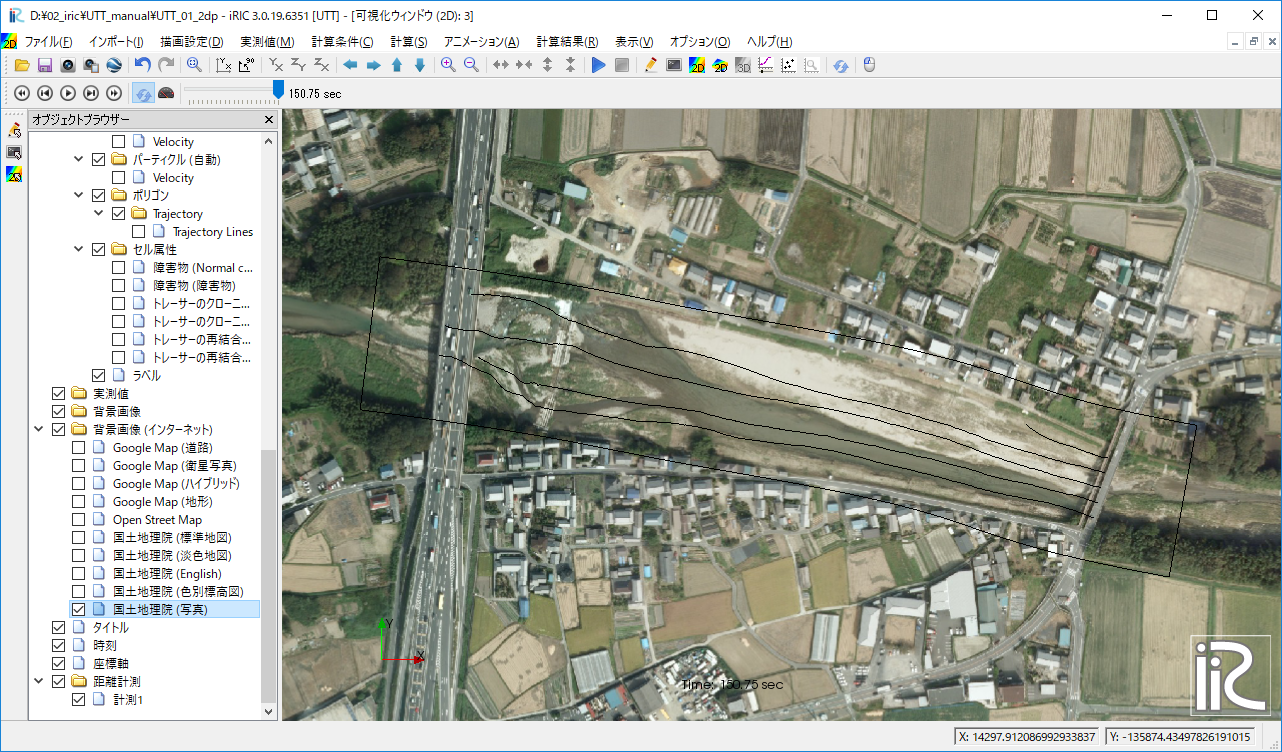
Figure 200 :Show Background Image
Right click the [Trajectory] at the [Polygon] in the Object Browser, and select [Property] as Figure 201.
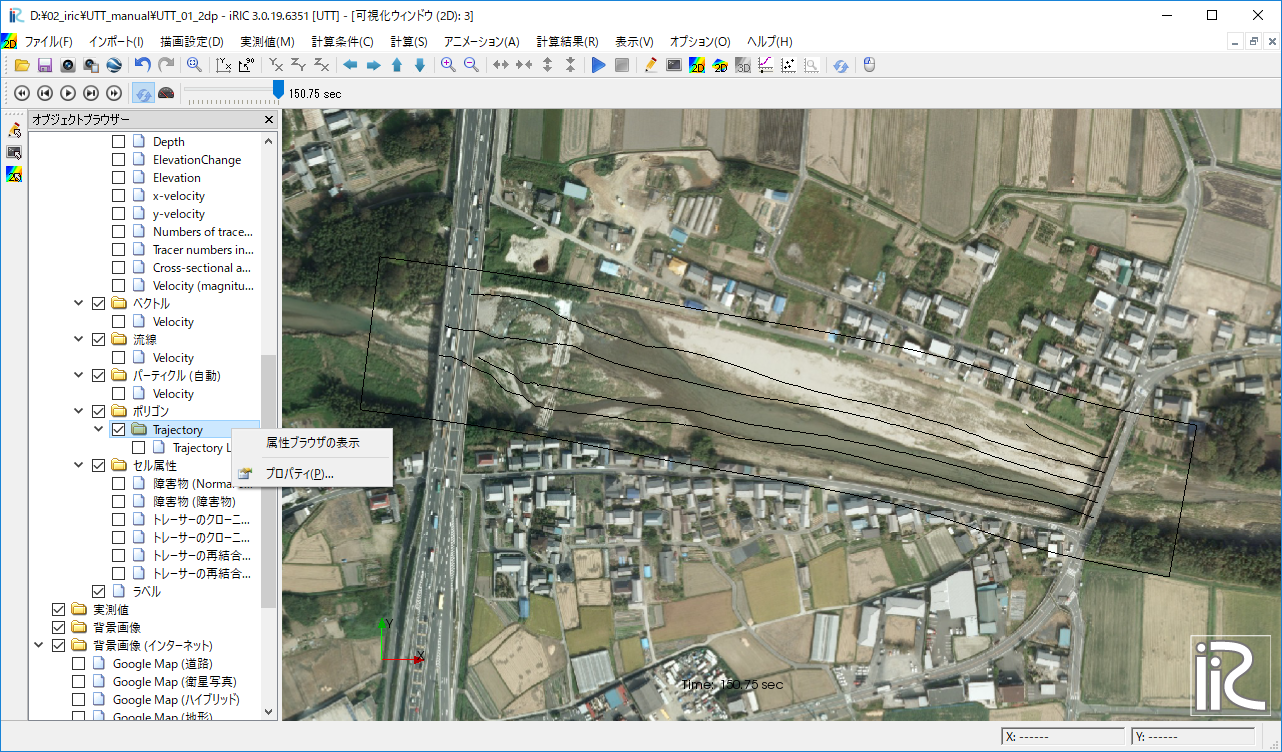
Figure 201 :Property of the Polygon
In the [Polygon Setting] window, set [Line Width] as [3] as Figure 202.
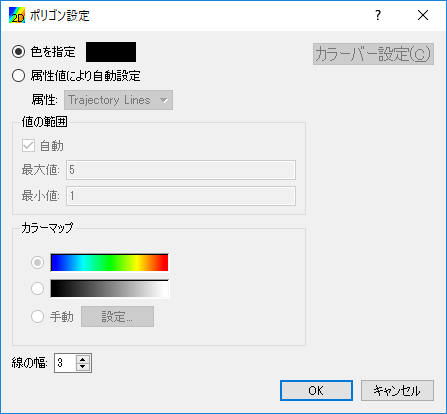
Figure 202 :Polygon Setting
From the Object Browser, put check marks at [Scalar(node)] and [Velocity] and right click [Velocity] and press [Property]. In the [Scalar Setting] window, as shown Figure 203, uncheck [Automatic], set [Max:] and [Min:] vales, and uncheck [Fill lower area].
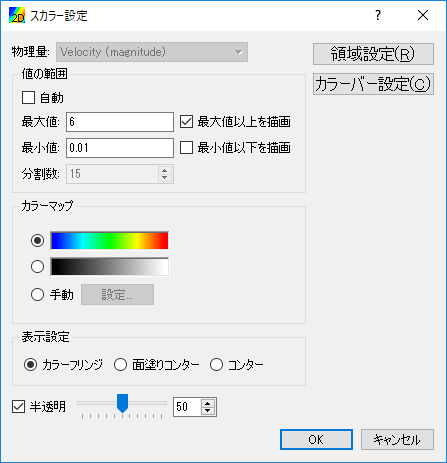
Figure 203 :Scalar Setting
After above settings the calculation results of the tracers injected from the Bridge can be visualized as follows.
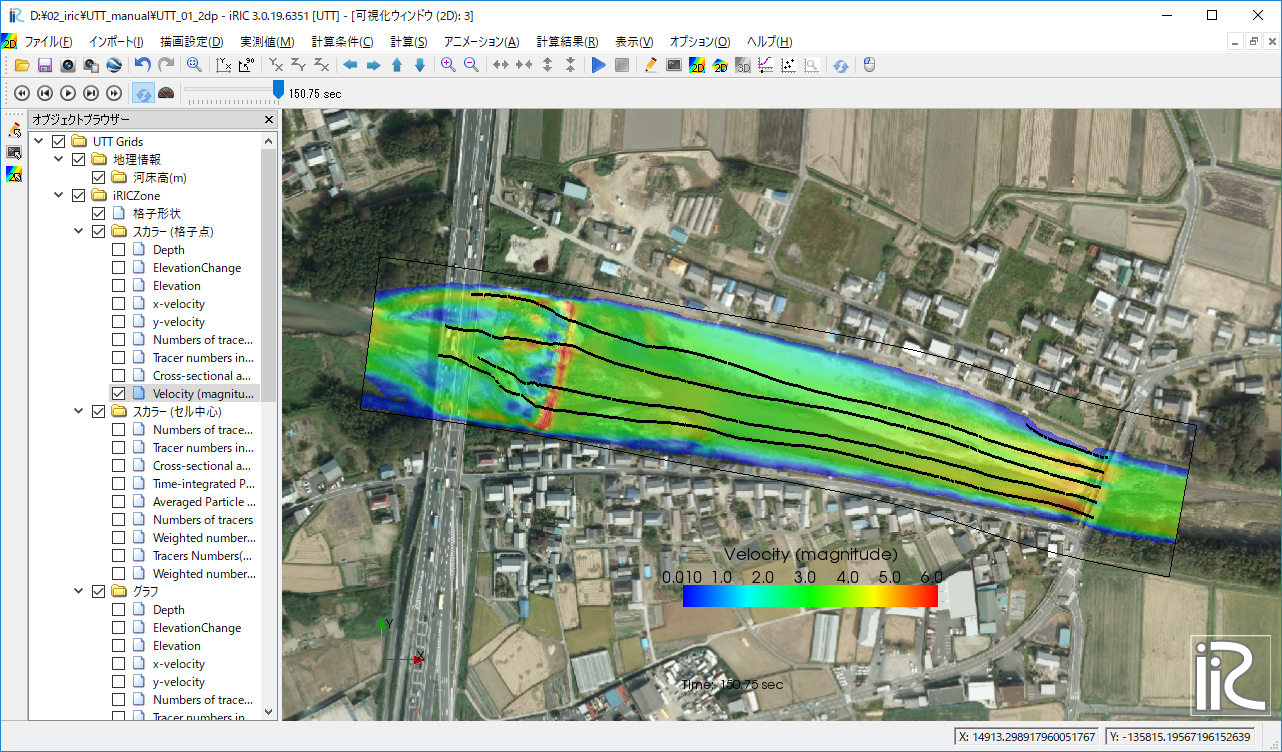
Figure 204 :Tracer Tracking Paths
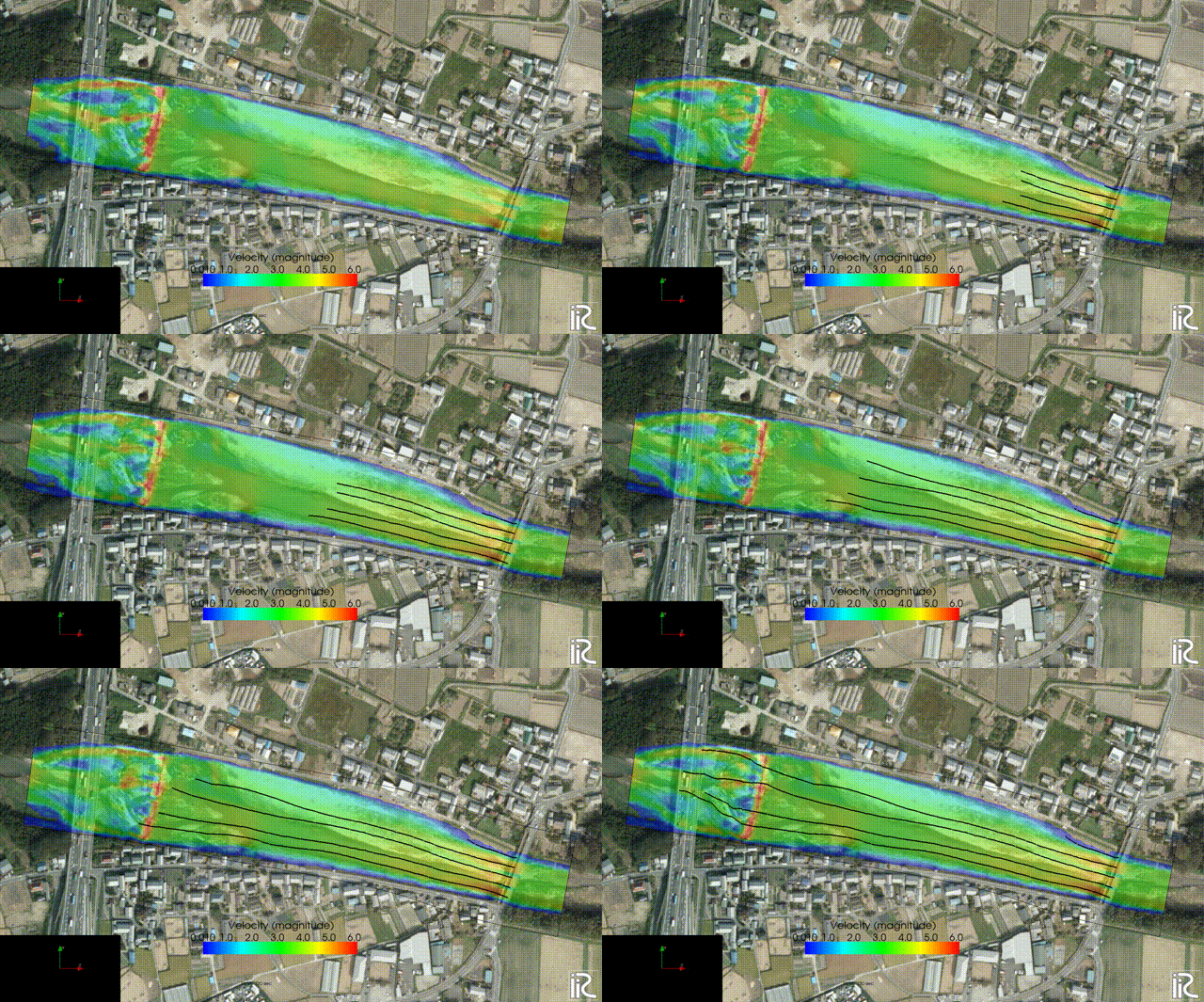
Figure 205 : Tracer Tracking Animation